Every question shows a target and a current state. Until now these were two rows of large tiles, even though the target is mostly inherited from the area and rarely changed. Answers are now much slimmer, and you choose how they look.
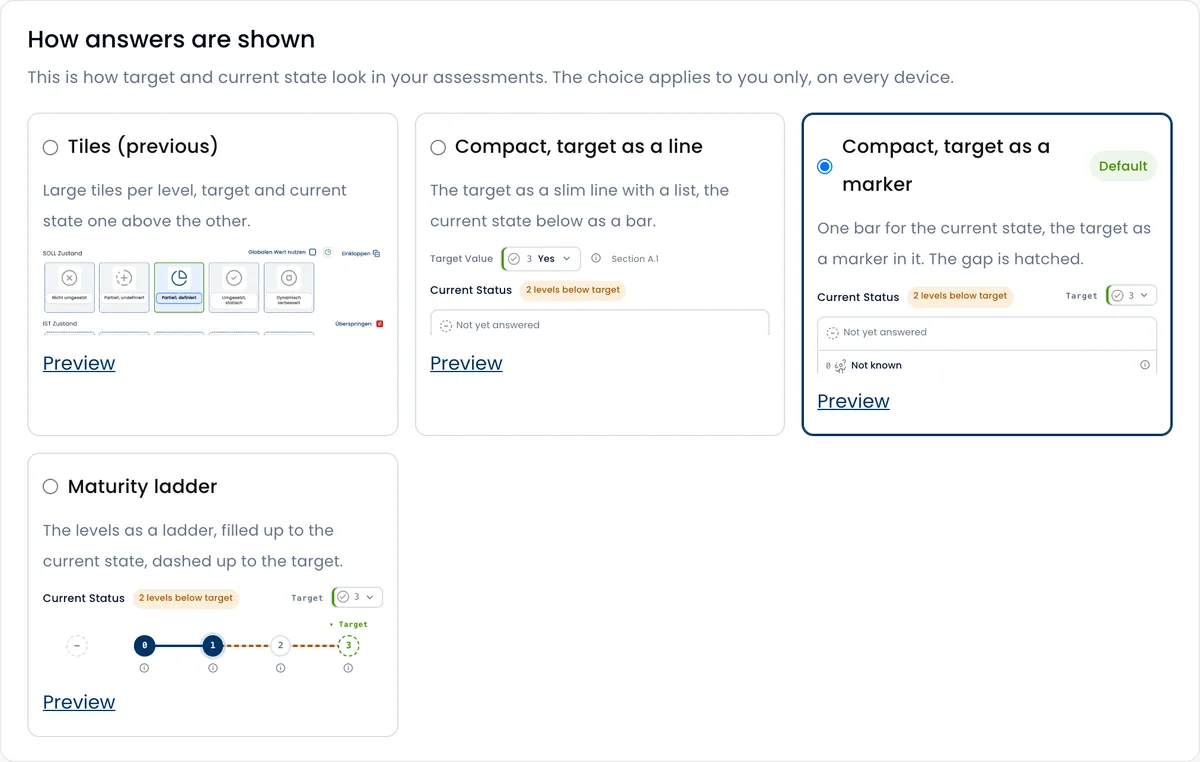
One bar for the current state, the target as a marker
The current state is a slim bar with every level of the scale. The target stands as a marker above the level that applies, and the levels between current state and target are hatched: the gap the measures are about is visible at a glance. The target is changed with a small button next to the bar, whose first entry is "Use global value".
Not yet answered, and hints
"Not yet answered" is the first level of the bar. A click on it removes an answer. Every level has a small (i) showing its hint, and the additional description opens in a window of its own next to the assessment. "N/A" now has an (i) as well: it says what the choice does and names the rule of the module where there is one, for IKT for example that N/A only applies to a question that is not relevant to your company, and that a missing process is the level "Not implemented".
Four layouts to choose from
On your profile, under "How answers are shown", you choose one of four layouts, with a preview: the previous tiles, the target as a line of its own, the target as a marker in the bar (default), or a maturity ladder. The choice applies to you only, on every device.
Every question on its ladder
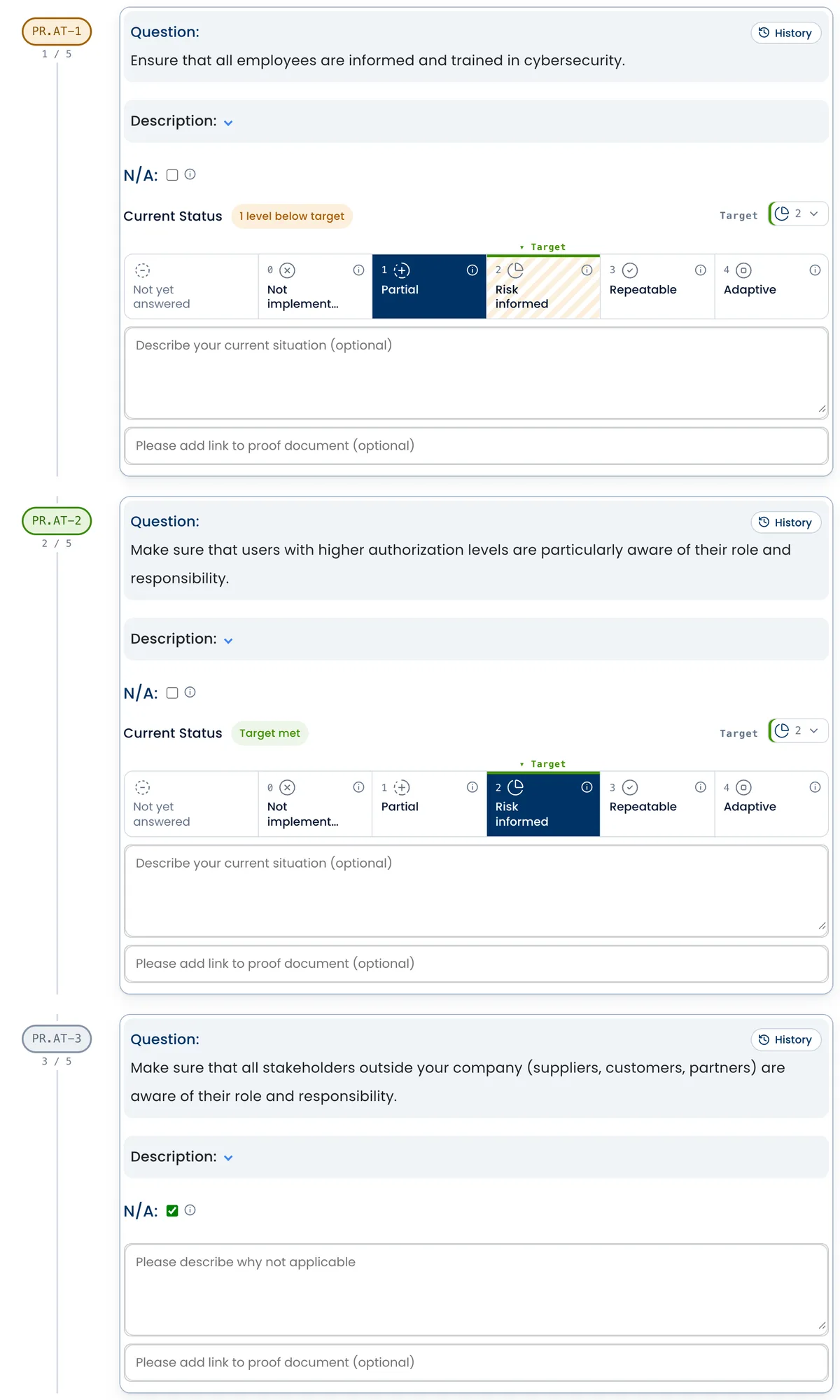
Every question and every row now sits in a framed card, so you see at once where a question begins and where it ends. A ladder runs down the left: the code is the rung, in the colour of its state, such as open, below target, met or not applicable, with its position in the list below it. This applies to the questions, the measures and the risk assessment; on measures the colour shows measure and validation, on risks the risk level. If you do not need the bar, hide it on your profile under "Question bar"; the code then sits at the top of the card.
Risks and measures in your layout
Risks and measures now have a choice of their own on your profile. Under "How risks are shown" you find the previous tiles, lines with probability and impact side by side, or a risk matrix in which one click sets both values at once. The value of a risk is probability times impact, at most 16, and its colour shows the level. Under "How measures are shown" you record measure and validation as tiles, side by side or one below the other. As long as you choose nothing there, both follow the layout of the answers.
Above every measure, the current state and the target of the question now stand side by side, with the origin of the target and a small bar that shows the gap between them hatched. Until now only the text of the answer stood there.
In the list of assessments, every assessment now shows next to its questions how many measures are worked on and how many risks are assessed, each under its own heading, and a click on an area opens it. There and in the results, a risk counts as assessed only once probability and impact are set or it is marked as not applicable.
The card of a risk now has three fields: "Risk assessment before mitigation", "Risk assessment after mitigation" and "Links / documents / evidence", as you know it from the questions. The former fields "Implementation description" and "Validation description" are gone; what they held is now under "Risk assessment after mitigation". The risk analysis in Word, the answers in Word and the assessment as Excel carry the same three fields. In the card's matrix, a bracket groups the columns under "Impact" and the rows beside "Probability", so it is clear which axis means what.
The history as a timeline
The history of a question, a measure, a risk or a row now shows for each entry only what changed, such as "Current 1 → 2" or a new comment, instead of the whole state every time. Current state, target and the fields of a row stand in one timeline, ordered by day and filterable by kind. At the bottom of every card you see who changed it last and when.
The risk results on one page
The risk results show a whole assessment on one page, even with a hundred positions. At the top are the figures: how many positions are assessed, how many are high or very high before and after the measures, how many were lowered by at least one level and how many still have no residual risk. Each area can be selected on its own and shows how many of its positions are still high after the measures. The "Change of level" shows from which risk level to which the measures lead.
The risk matrix and the residual risk matrix stand side by side. A click on a cell shows in the other matrix where these positions went or where they came from, and the list below follows the selection. Every position in the list has a small matrix with the path from risk to residual risk and the state of its measure. A click opens its risk assessment. The same small matrix also appears for every position in the risk analysis as Word.
The risk analysis in Word now shows the graphics of the page too: the key figures at the top, below them the change of level as a picture, and the risk and residual risk matrices side by side on a landscape page.
The results as a report, and the new executive report
The results PDF has a new design and reads like a report for the management. After the cover, the essentials fit on one page: a short sentence that names the strongest and the weakest function and says how far the overall value is from the target, together with the key figures and the largest gaps. Then come all functions and areas with current state, target and gap as bars, the radar chart and the fields of action, the questions with the largest gap. The whole report is set in Poppins, the typeface of scmc.ch.
The executive report is new: assessment, measures and risks in one PDF. The summaries with graphics come first, such as the state of the measures, their deadlines by quarter, the progress per responsible person, what is overdue, and the risk and residual risk matrices. All values follow at the end as an appendix: every question with its answer and remark, the register of measures and the register of risks. You download the executive report from the list of assessments, among the documents next to the Word files. It appears there as soon as the measures of the assessment are unlocked.
Both reports also come as Word, looking the same as the PDF, so that you can keep working on them: texts and tables are ordinary Word content, the graphics are pictures, and the typeface travels inside the document. You download the results as Word in the results view next to the PDF, the executive report as Word in the list of assessments.
A mark for every module
Every module now has a mark of its own with a symbol and a short code, such as IKT with a lightning bolt or DSG with a lock. You find it in the app in the module list of a project and at the top of an open assessment, on the PDF reports and in the Word documents. So you see at a glance which module an assessment or a report belongs to.
The pricing page shows every module with its mark as well. It opens with the yearly price, shows at a glance whether a module includes measures and risks, and sums up what all modules have in common.
Duplicating and importing apply the template
A duplicated assessment, or one imported as new, receives the template of its category, like one created with "New". A target you set yourself is carried over. A target that only came from the template comes fresh from the template that applies today, so a changed template also reaches the copy of an older assessment. In the Excel export, the column for your own target accordingly holds only what you set yourself.
New partner: HWZ
HWZ University of Applied Sciences in Business Administration Zurich is now one of our partners. Together we develop digital learning content that anchors cybersecurity at management level. The first is the self-learning module "SCMC Cyber-Risiken: Führung gefordert" (in German) in the CAS General Management: about 50 minutes for executive boards and managers, with no technical background needed. You can also reach it at the top of the help center and in its own section on the home page.
Fixed
- In the Word documents for answers, measures and risks, tables were wider than the page and text was cut off at the edge, in Word for Windows and for Mac alike. The documents now have fixed A4 margins, their tables fit the page, and long links and words wrap.
- An assessment imported as new, whose file names a category, did not receive the template of that category. Where the file had no target, the default value of the scale applied, and the results were calculated with it without any hint. The template is now applied first.
- For the target of an area or of the whole assessment, "Show history" showed nothing while the selection was collapsed.
- In ISO 27001, a question not yet answered appeared as "N/A" in the PDF report, the comparison Excel, the measures and the history, as if it did not apply. It now says "Not yet answered" there.
- A setting you had changed in another tab or on another device, the language for example, jumped back as soon as a tab still open saved another setting. Now only what changed is saved, and a tab reads the current state when you return to it.
- For a question not yet answered, the measures showed the text of the first level as the answer, as if it were answered. It now says "Not yet answered".
- The history of a question also showed the reminders of its measure. Reminders now appear only in the history of the measures, where they are set.
- Nearly all blog posts on scmc.ch reached search engines as an empty page, without their own title and without text. Every post page now carries its text, its title and its description in the delivered HTML.
- Parts of the home page and some views appeared in your computer's system font instead of Poppins, and bold text was widened artificially by the browser. The whole site, the charts of the results included, now uses Poppins with real bold weights.
- The deadline of a measure and the time of a reminder showed in the American format in their input field, such as "10/27/2027", whatever the language. They now follow the language of the app, "27/10/2027".